 Miliastry
Canvas Studio, Collaborative Editing and a Workshop with Profiles
Canvas Studio gains a layers panel and image preparation; collaborative editing adds passwords, per-block cursors and room chat; the Workshop arrives with profiles, threaded comments and publishing for blocks and snippets; and Text Studio offers three appearances.
A release about working with more people and in your own way: Canvas Studio, real-time collaborative editing and the Workshop all arrive for the first time, joined by public profiles, Text Studio with three appearances, and notices that do not wait for a new version.
Canvas Studio is new in this version: you edit your page right on the result, and the code and the preview follow the same document.
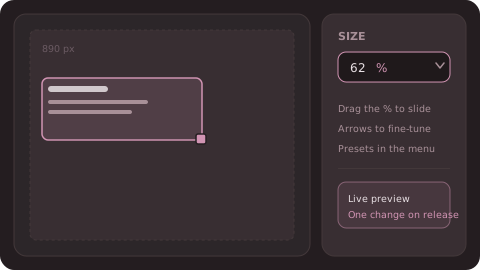
Type, use the arrows or drag the %: the block previews live and commits once when you let go.
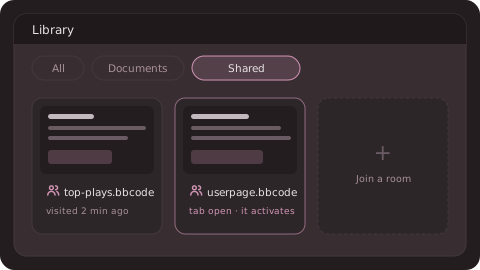
The rooms you join are cards in your library; if their tab is already open, it just activates.
The Workshop is the community’s place to publish your own work and discover other people’s, with comments and stars. It arrives with tools to look after it:
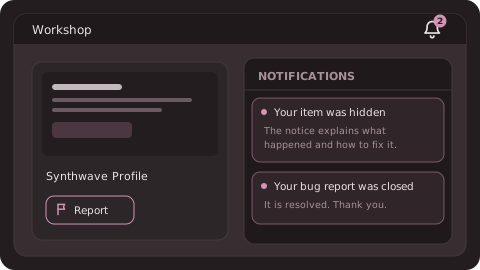
Report on every item, and a bell that tells you the reason behind each decision.
A reminder that Miliastry is collaborating with SYNE, the rhythm game. The code MILIASTRYXSYNE26 gets you into its closed beta, so you can try it right now. Meet the game at syne.zxz.moe.
Collaborative editing has arrived (experimental testing phase). Share a document and edit it together in real time, now in Lite too. Expect rough edges, and tell us what you find with «Report a problem».
 Canvas Studio, Miliastry’s visual canvas
Canvas Studio is new in this version: you edit your page right on the result, and the code and the preview follow the same document.- Design variables: name a value once and reference it from your blocks. A variables panel lists them, and you can bind one to the block you have selected.
- Drag and drop onto the canvas, uploads included.
- Size in a single field, like Figma: type it, use the arrow keys (
Shiftjumps by 10), drag the%to scrub, or pick a preset. The block previews live while you scrub and commits once when you let go; dragging the corner handle moves the field too. - Layers panel: your blocks in their real order and hierarchy. Drag a row to reorder it or to drop it inside another, and jump to a block with one click.
- The inspector edits the link and colour of the block you have selected, with a colour picker and a live preview.
- The gap handle under a block works on gradients too.
- The page is capped at the 890 px box osu! uses.
- Icons of its own for blocks and the ribbon: every kind reads at a glance.
Type, use the arrows or drag the %: the block previews live and commits once when you let go.
 A canvas built so you never lose your place
- Your selection survives moving a block, aligning it, undoing, and changes coming from a collaborator.
- The text editor’s caret and the canvas selection stay in step even when text shifts.
- When someone else types, the preview no longer flickers or stretches the selection: the boxes are measured again against the new text.
- Undo while typing inside a block:
Ctrl+Z,Ctrl+Shift+ZandCtrl+Ygo to the document history right away, without waiting for you to leave the edit. - Undo and redo keep working with the code editor closed.
-
[right]and[audio]blocks are drawn too. - Gradient text is drawn in full, even on script faces and italics.
- Images stop holding the canvas back: GIFs and images that leave the screen are parked and come back when they return, so a page with dozens of GIFs types just as fast.
 Inserting an image: you see it first, then it goes in
- Before uploading an image you can adjust it: crop it, pick the output size, the format (WebP, JPEG or PNG) and the quality, with the preview right beside it.
- While you insert it, the preview draws it provisionally: you see where it lands and how it looks before confirming, without waiting for the upload to finish.
 Text Studio, three ways to work
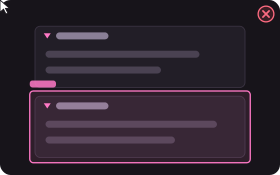
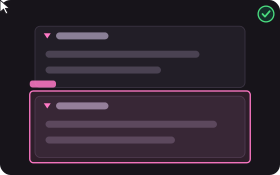
- The studio gains two new appearances: Mesa, with the text in the middle and the effects tray below, and Vidrio, with three collapsible cards over the canvas. The old one stays as Current.
- You pick one from the window’s own settings, it applies instantly and is remembered; you can jump between appearances without losing the document, the layers or the history.
- In the Current appearance you can hide the text treatment to gain height in small windows.
 Rooms you join live in your library
- The collaboration panel shows Shared with me, with a way back into each room.
- The Library lists the rooms you have joined as tiles, under a Shared filter and mixed into All by last visit. If its tab is already open, it is activated instead of joined twice.
- Reopen a document you were hosting and its shared room picks up where it was, until you end the session.
- A room someone else owns is not saved as a draft of yours, so leaving it leaves nothing behind.
- The password is remembered on this device: coming back to a room no longer asks for it, and it is forgotten if it changes, if you are kicked, or if the room ends.
- Everyone else’s cursor and selection are published 30 times a second, and each one is drawn inside its block rather than over yours.
- Room chat for every role, from a button with an unread count in the ribbon and in Canvas Studio. The latest 500 lines are kept, and whoever joins receives the last 100.
The rooms you join are cards in your library; if their tab is already open, it just activates.
 The dialect belongs to the document
- Each document now records its dialect and saves it. Opening it restores it, and switching tabs follows the document in front.
- Older files open unchanged and take the dialect you are working in.
- The menu draws every page in its own dialect, so a thumbnail looks the same when you save as after a reload.
 Library and cloud
- Cloud save lives in the main menu now, and stale thumbnails are refreshed on their own.
- Collections in the Library for your snippets, block templates and emoji.
- Shared rooms get thumbnails too.
- From your profile you can manage and delete your own cloud files.
- You can delete your account from your profile: it is scheduled for 14 days later, and you can cancel until then.
- Thumbnails keep gradient text, including the ones published to the Workshop; older ones renew themselves.
- Create snippets, blocks and layouts from the Library: each collection has a New button that opens the editor already on a new one.
- A page you clone from the Workshop remembers where it came from: the Library says “based on” and opens the original.
- Saving a published page to the cloud keeps it published: the dialog offers Update and Withdraw instead of making it private again.
 The Workshop, cared for from day one
The Workshop is the community’s place to publish your own work and discover other people’s, with comments and stars. It arrives with tools to look after it:- Every Workshop item has a Report button, and creators can take their own item down from its page.
- A notification bell with an unread count: when your item is hidden, removed or deleted you get the reason, and so do you when a bug report you sent is closed.
- Authors can delete their own Workshop comments and plugin reviews.
- A hidden or removed item cannot be opened, starred or commented on by anyone.
- Accounts can be banned: the reason shows at the next sign-in, and the account’s public Workshop files come down.
- Every author has a page of their own: country, creator and supporter badges, when they joined, their numbers, their BBCode “about me” and their creations, plus the comments they left as contributions.
- An author’s name is clickable on the wall and on every item’s page, and My profile takes you to yours even if you have not published anything.
- Profiles with an identity of their own: a cover with artwork, tiles with each category’s icon, the Founder badge, the creator’s built-in plugins and an “about me” with a live preview as you write it. The founder’s profile gets a treatment of its own.
- Profiles can be reported, and moderation can put one in quarantine: the profile and what it published stop being shown without deleting anything, and lifting it leaves it as it was.
- User roles in the control room, with their own picker. Moderators hide, remove and restore items, and have their own Workshop and Profiles queues.
- A report that has already been answered no longer stops you from reporting the item again.
Report on every item, and a bell that tells you the reason behind each decision.
Publish, reply and share
- Aura blocks, snippets and layouts are published from their own window, through one dialog: a block carries its icon, tags and variables; a snippet, its category. Installing them from the Workshop reads everything back, and publishing again updates the same item. If a layout is refused, the dialog lists why.
- The Snippets window, rebuilt: a list and a detail pane, one large preview, Insert as the primary action and an editor inside the pane itself. Category colours follow the theme.
- Comments with replies: answer in place, edit your own, and get notices for comments, replies and stars that open the item. You cannot star your own item, and your own downloads do not count.
- Links to share:
/editor?workshop=<id>opens an item and/editor?u=<osuId>a profile. Opening them leaves a history entry, so Back and Forward work, and both views have Copy link. - The wall, profiles and notifications load more pages and tell you when the list ends.
-
Ctrl+Kalso finds Workshop items by name or author, and people.Esccloses an item or a profile, and the arrow keys move along the tabs.
 Notices that do not wait for a new version
- Maintenance and incident notices are written from the control room and show up in the app and on the landing page without publishing a version.
- They can be dismissed; if the notice changes, it comes back so you know there is something new.
- If the database does not answer, the app uses the last notice stored in the client itself.
 Lite and plugins
- The Floating Dock plugin is retired: if you had it on, its tools are in the ribbon now.
- Lite offers only the backstage menu, with Back to menu again. It now has the Plugins and Workshop places too, and real-time collaborative editing.
- What’s new now opens after the beta notice instead of under it.
 Also
Also
- The Spanish landing at miliastry.com/es, and the editor at
/editorcan now be found by search engines. - The first time you visit, Miliastry uses your browser’s language.
- Terms and Privacy, in English and Spanish, and an acceptance window before signing in with osu!.
- Maximizing and restoring a window keeps its size and position.
- The Nova and Aurora boot screens are gone: Miliastry opens straight in.
- The Quasar landing is renewed: a WebGL2 black hole and sections built from the engine’s real output, with a navigation menu by category.
- The release history is public at miliastry.com/changelog, with Atom feeds.
- Changing a document’s palette reuses its analysis instead of repeating it, and the error checker’s diagnostics panel is reorganised.
- A security review of our own and tighter request limits.
Something broken or off? Use «Report a problem» in the ribbon: it arrives with the session’s technical data, and it is read.
 Miliastry finally has a main menu
 A real project manager
 Settings, rebuilt as a workspace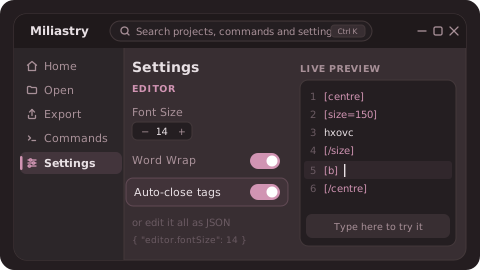
 SYNE mode, in the language of its website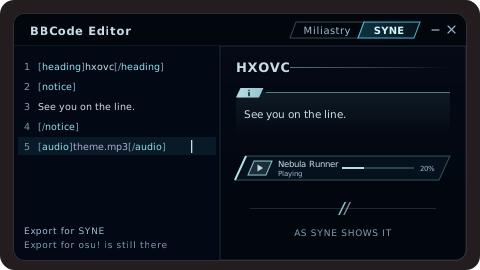
 Million-character documents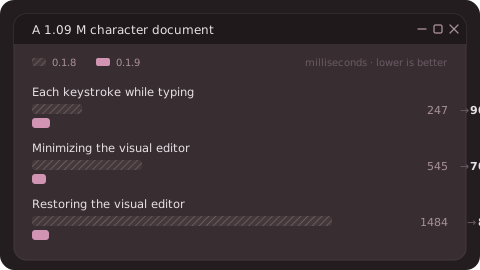
 Come back and everything is where you left it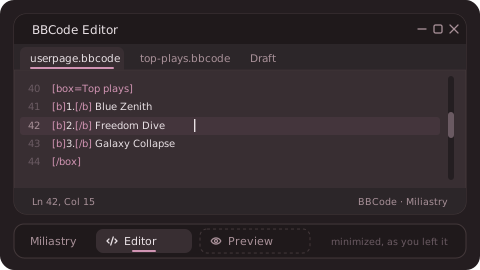
 Gradients without lag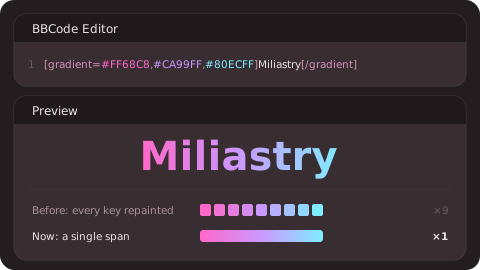
 Also
Also The fixes
 A desktop taskbar
 Live blocks: data that refreshes itself
 One document, many views
 An incremental engine, and an osu!-faithful preview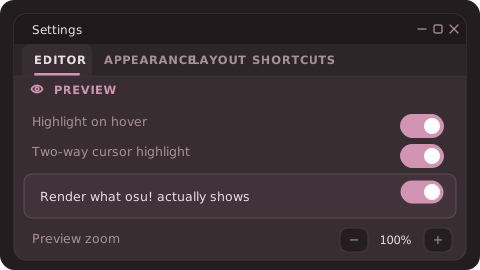
 Error Checker, rebuilt in two views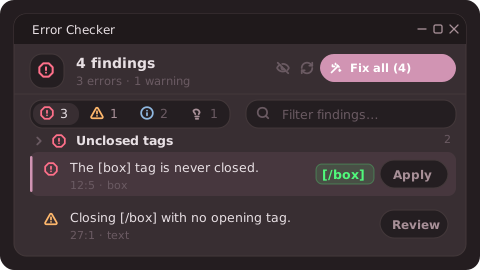
 Japanese and Korean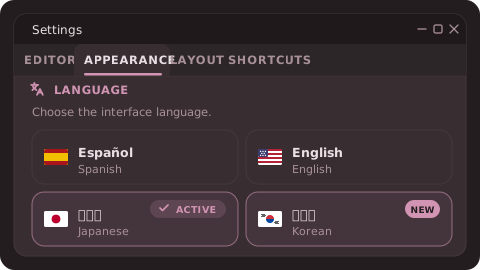
 Also
Also The four fixes